
Friends · Busy only
Shows only whether you are busy on a given day. Friends can find a suitable time without seeing shift names or times.
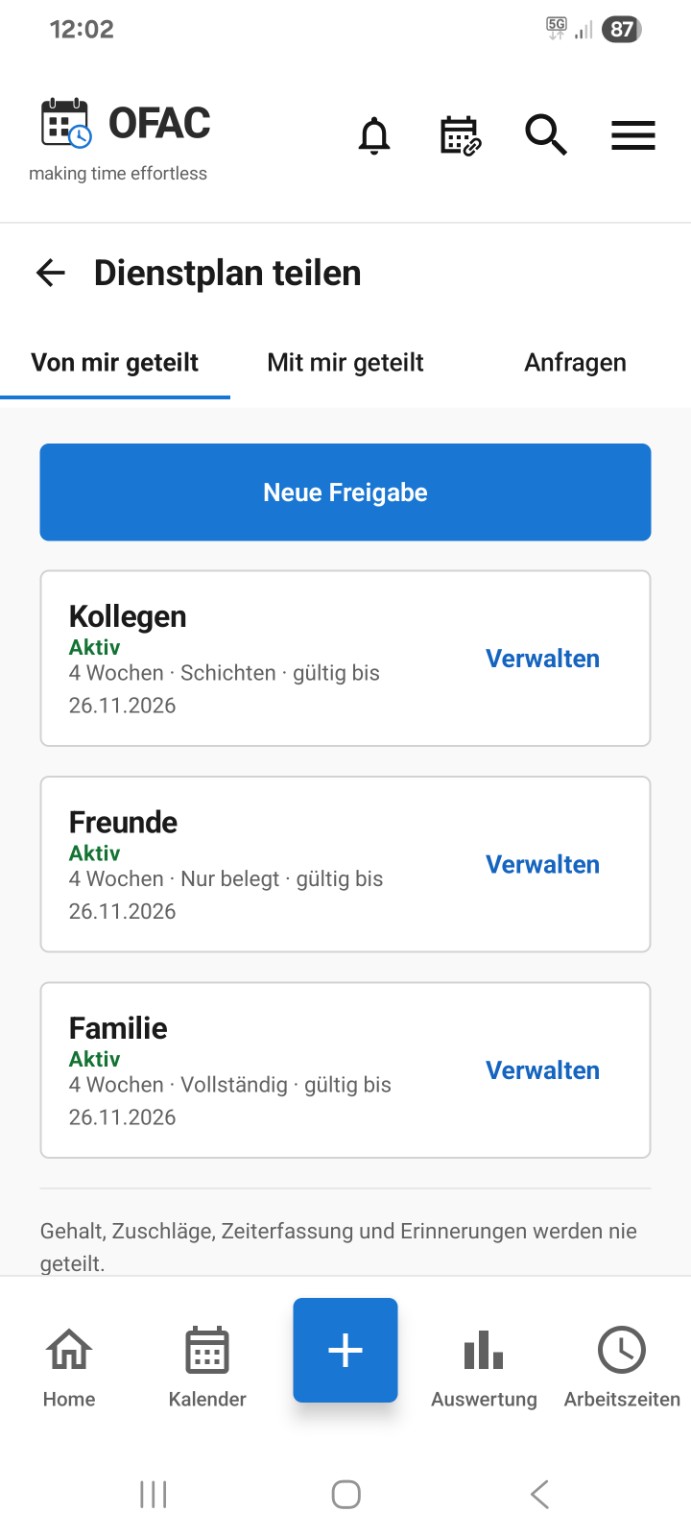
Coordinate your shift schedule with friends, colleagues and family using separate shares, individual calendar ranges and the right level of detail.
Available from OFAC 1.10 · Creating your own shares requires an OFAC account and an internet connection. Check the current release status
The calendar range controls how far ahead your shared schedule extends. For each share, choose 4, 8 or 12 weeks from today. This rolling window moves forwards whenever the share is updated. You select a number of weeks, not a custom start and end date.
The access period controls how long the recipient can open the share: 30, 90, 180 or 365 days from the date it is created. The expiry date is fixed and cannot be extended by editing the share.
For example, you might share the next four weeks with friends and the next twelve weeks with family. Both shares can remain available for 90 days, and each keeps its own settings.
Shows only whether you are busy on a given day. Friends can find a suitable time without seeing shift names or times.
Shows the type and times of the selected entries. Custom titles remain hidden, which is useful when coordinating duties.
Shows titles, times and colours for the selected entries. Private appointments are included only if you explicitly select them.
These are examples, not fixed roles. Any level of detail can be used for any share. Labels such as “Family” are visible only to you and simply make your shares easier to recognise.
Select shifts, absences and appointments separately. Absences include rest days, annual leave, sickness and public holidays. Private appointments are excluded by default and are shared only when you choose to include them.
Pay, allowances, working-time records and reminders are never shared.
The selected detail level still applies. A private appointment included in a Busy only share does not reveal its title or time.
To create a share, you must be signed in to your OFAC account and connected to the internet.
If the recipient uses OFAC, send an invitation to the email address linked to their OFAC account. They can accept or decline it in the app.
Alternatively, create a browser link. Anyone who has that link can view the shared calendar without the app or an OFAC account. Treat it as confidential and stop the share if the link reaches the wrong person.
Invitations are valid for seven days. Removing or rejecting an invitation does not automatically stop a share that has already been accepted.
Each share can be managed separately. You can change its label, content and level of detail. You can also stop sharing at any time.
The calendar range and fixed expiry date cannot be changed after creation. Create a new share if you need different values.
OFAC synchronises the shared content when relevant data changes. A recipient may briefly see the last downloaded version while offline. A stopped or expired share can no longer be refreshed.